
How many active/conditional orders can I view on my Last Traded Price chart?
Traders can place 500 active orders, 10 conditional orders, and 20 TP/SL orders. The maximum number of active and/or conditional orders that can be viewed on your chart is limited to 100. Any subsequent orders placed (101st order onwards) will overwrite the display of the oldest order shown on the price chart.
For example, order numbers 1 to 100 will be shown on the price chart as well as inside the Current Orders tab. If the 101st and 102nd active orders are successfully placed, only order numbers 3 to 102 will be shown on the price chart.
Can I amend my orders directly on the chart?
Yes, you can amend orders by dragging the price line of your limit or conditional order. However, please be aware that this is limited to the changing of order price or trigger price for active limit orders or conditional orders respectively. To change the order price of your conditional order, you can go to the Open Orders → Conditional tab.

What are the quick trading features?
The quick trading feature that is currently available on the Bybit Georgia website is Quick Trading - Market Order.
For more information, please refer to Introduction to Quick Trading Features.
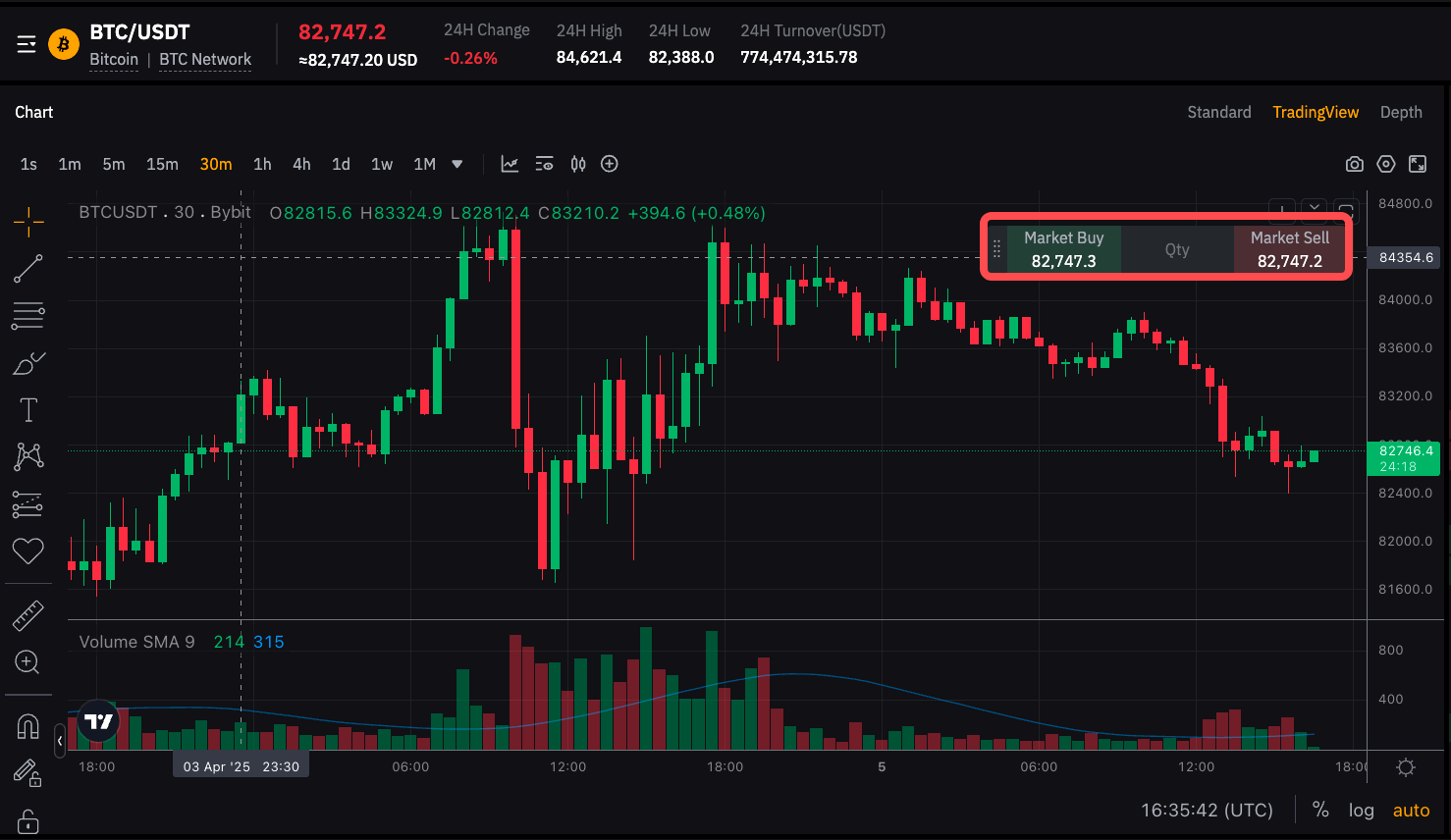
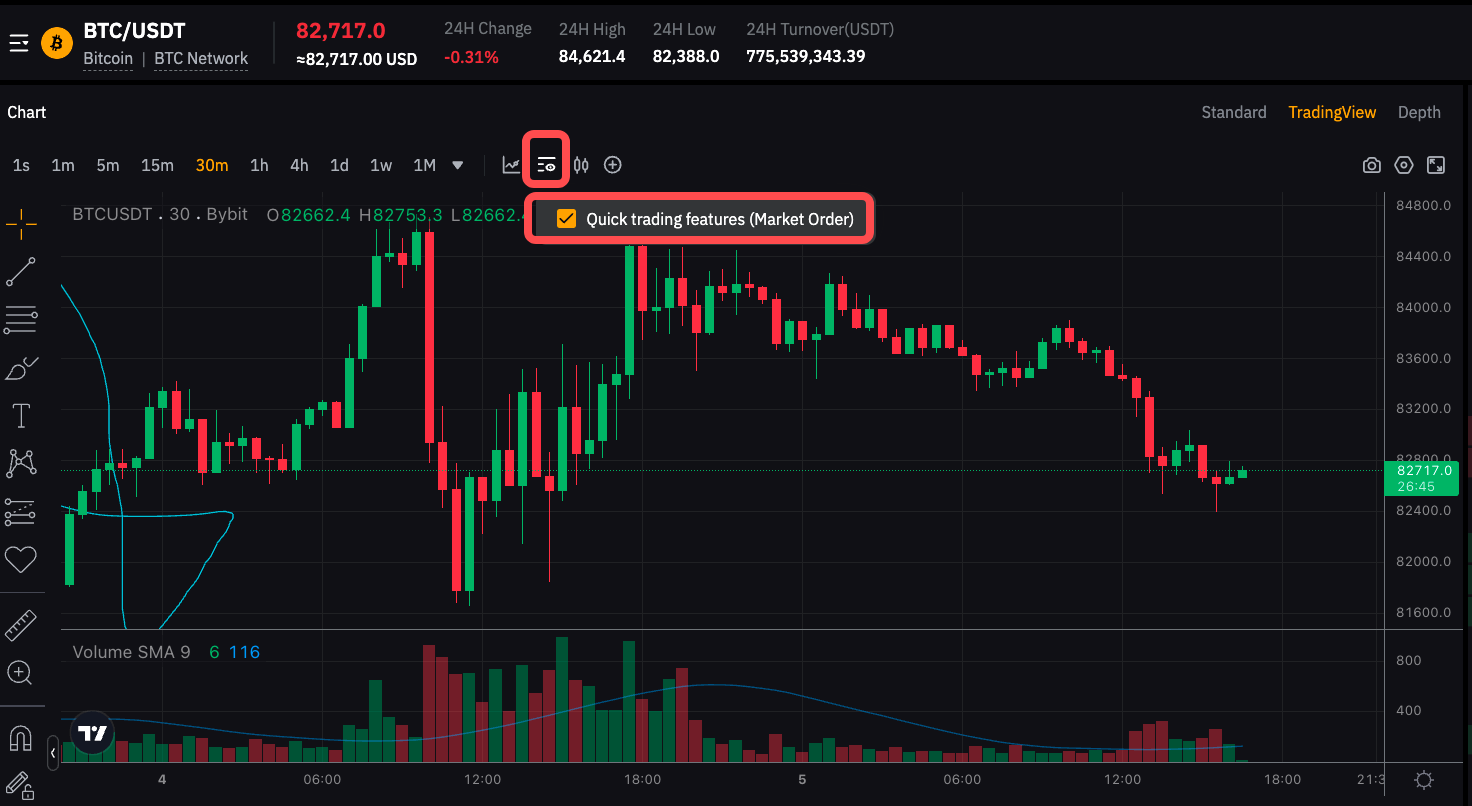
How do I turn on/off Quick trading features?
Click on the Display icon in the chart menu (three horizontal lines and an eye on the lower right side) and uncheck the Quick trading features box.
Can I view my Trading Bot orders on the LTP chart?
No. Currently, orders from Trading Bots will not show on the Trading Chart.
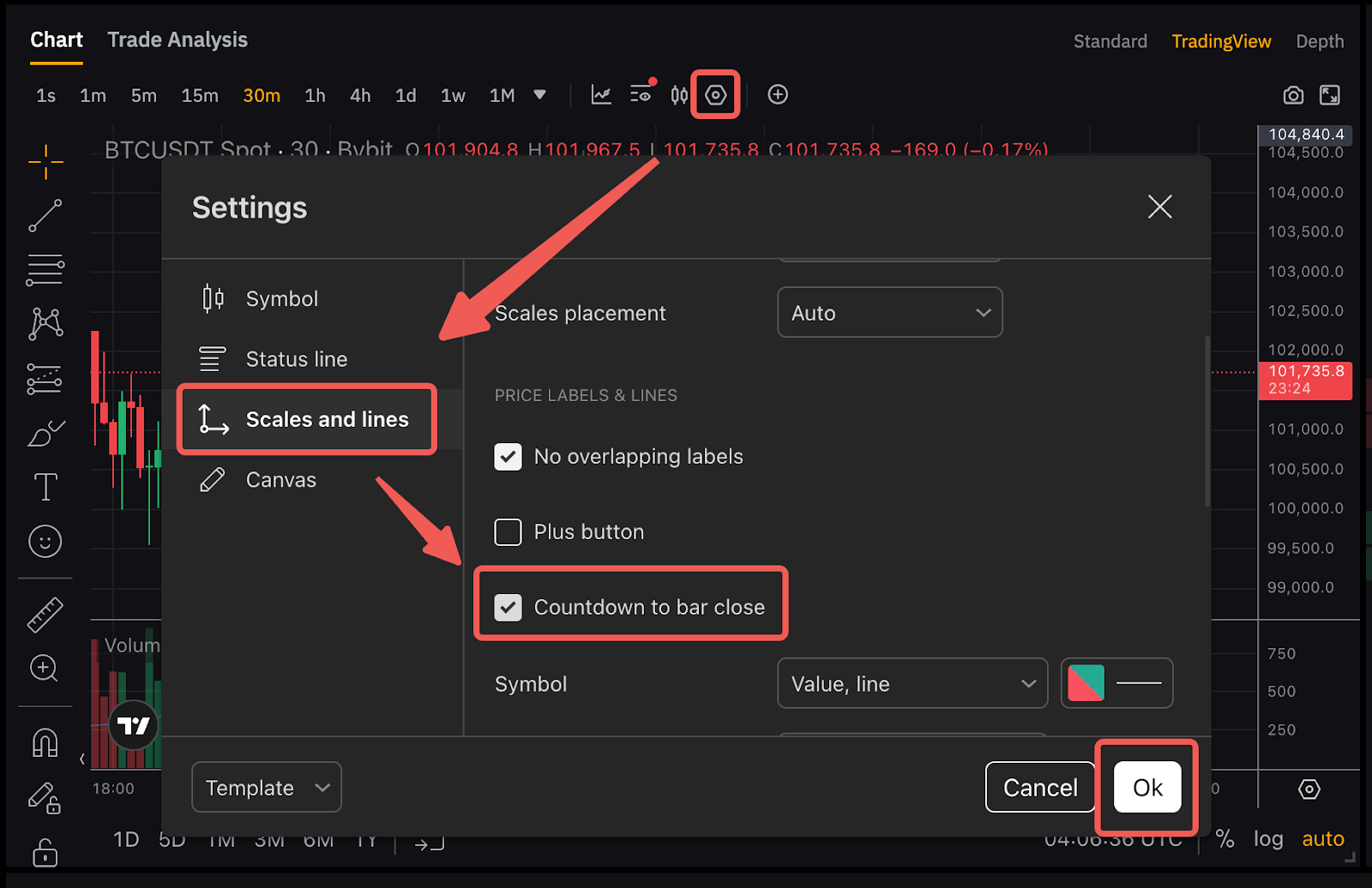
How do I enable the Countdown to Bar Close?
Navigate to Settings → Scales and Lines and tick on the Countdown to Bar Close box to enable it. This feature is currently only available on PC.
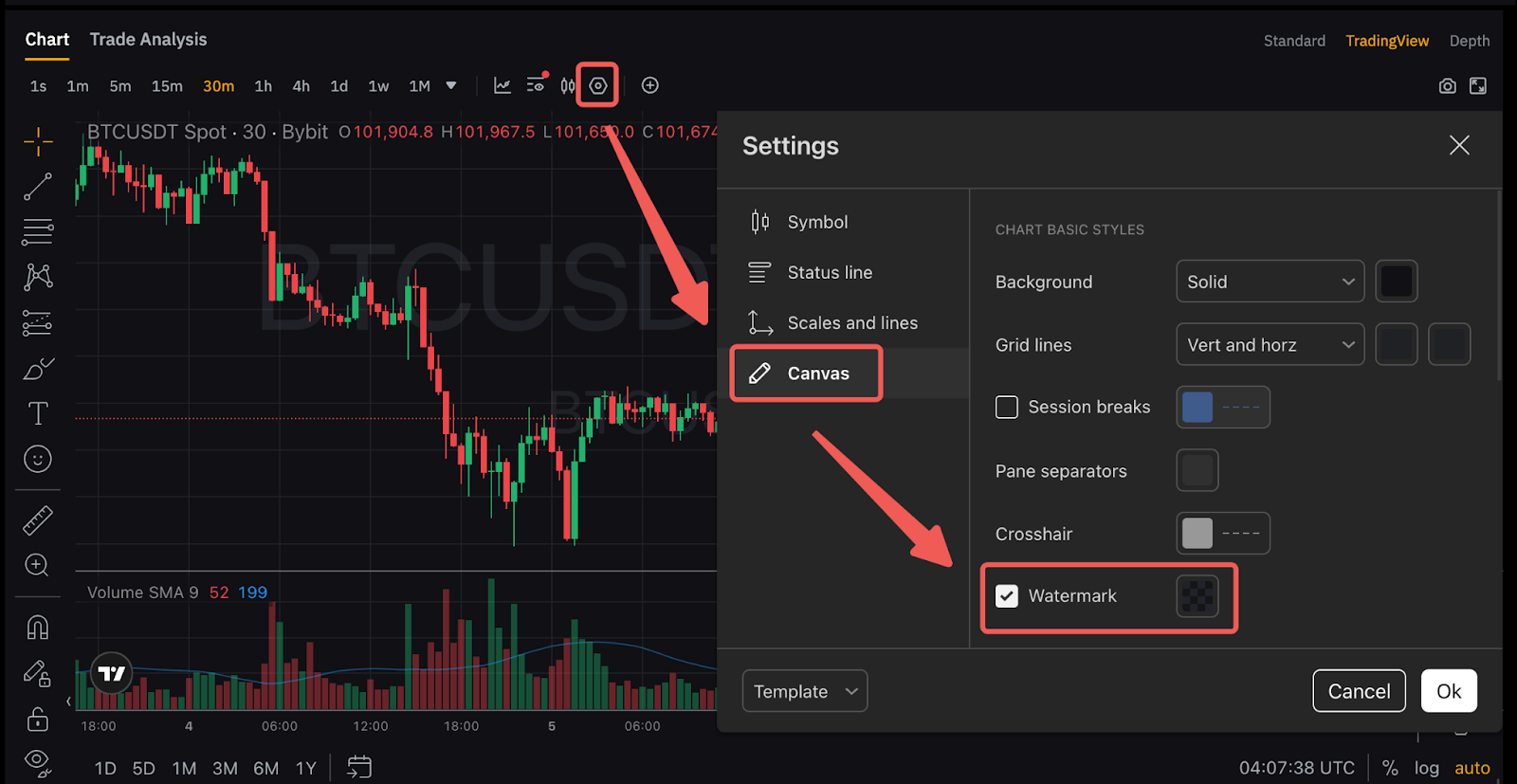
How do I remove the trading pair's background symbol on my trading chart?
Right-click within the chart area, then click on Settings → Canvas → uncheck the Watermark box and click on Ok.
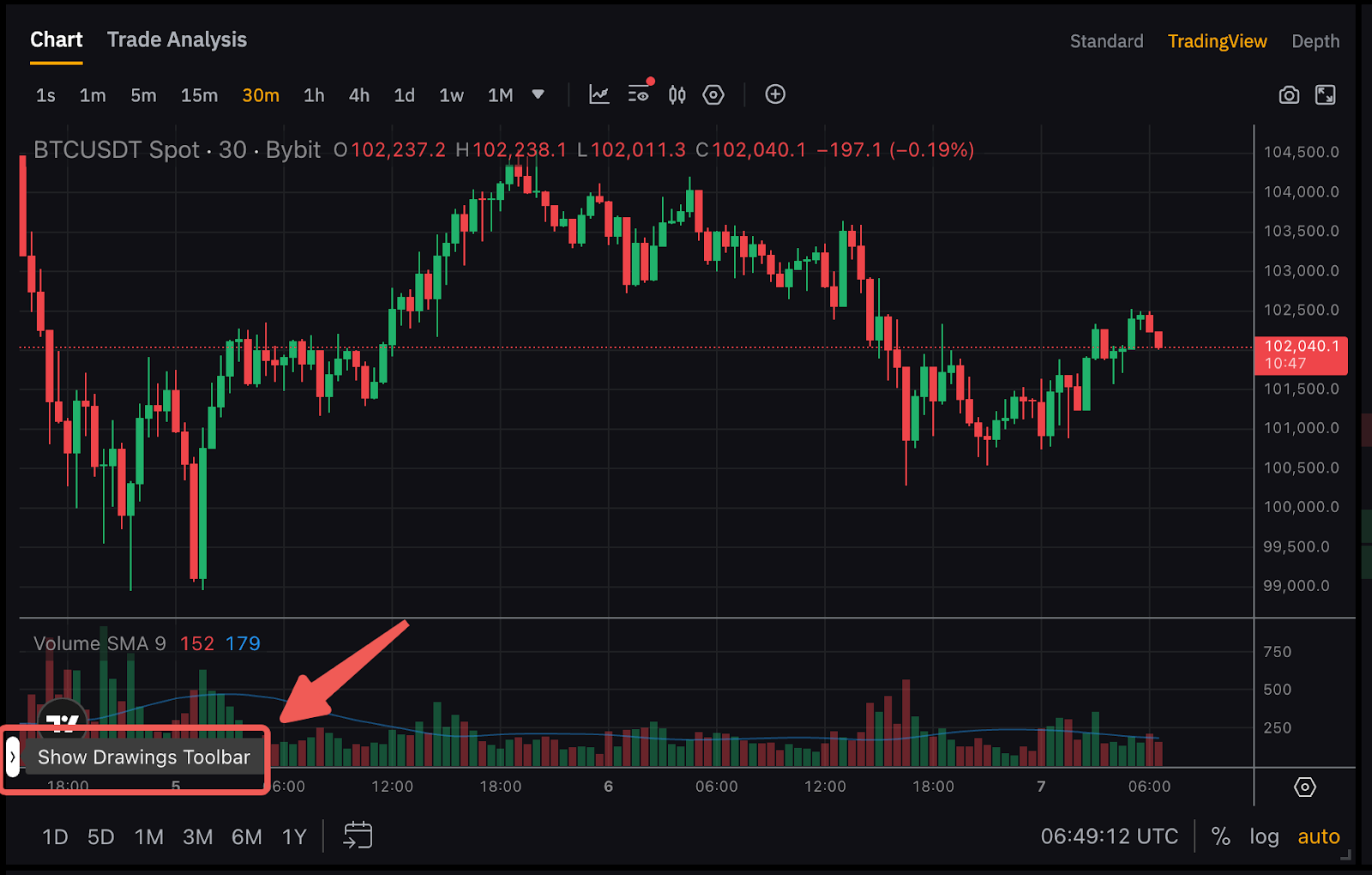
How do I turn on drawing tools?
You can enable the drawing tools from the lower left corner of the Trading View Chart.
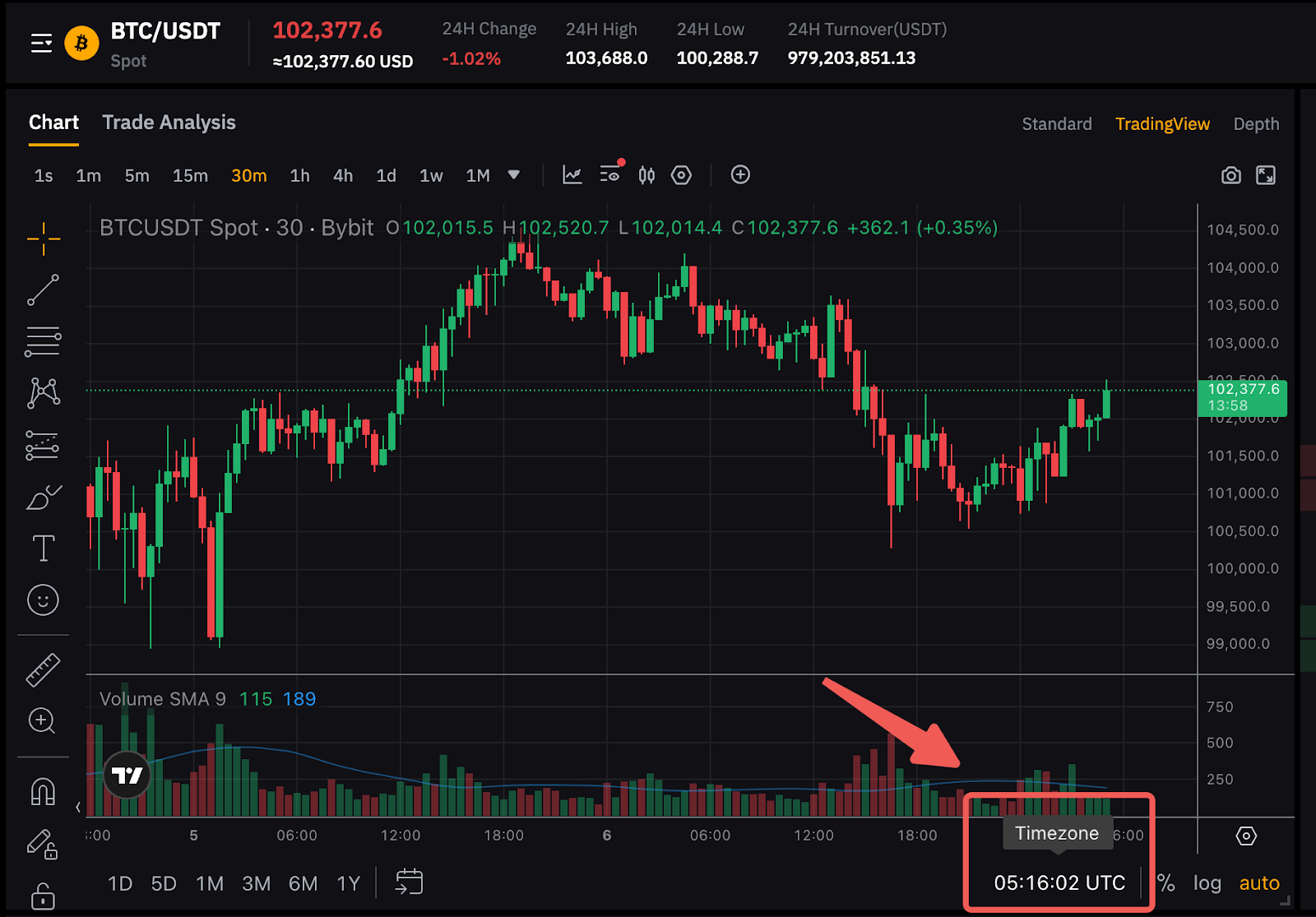
How can I adjust the chart timezone?
You may click on the time indicator at the bottom right corner of the chart to select your preferred timezone.
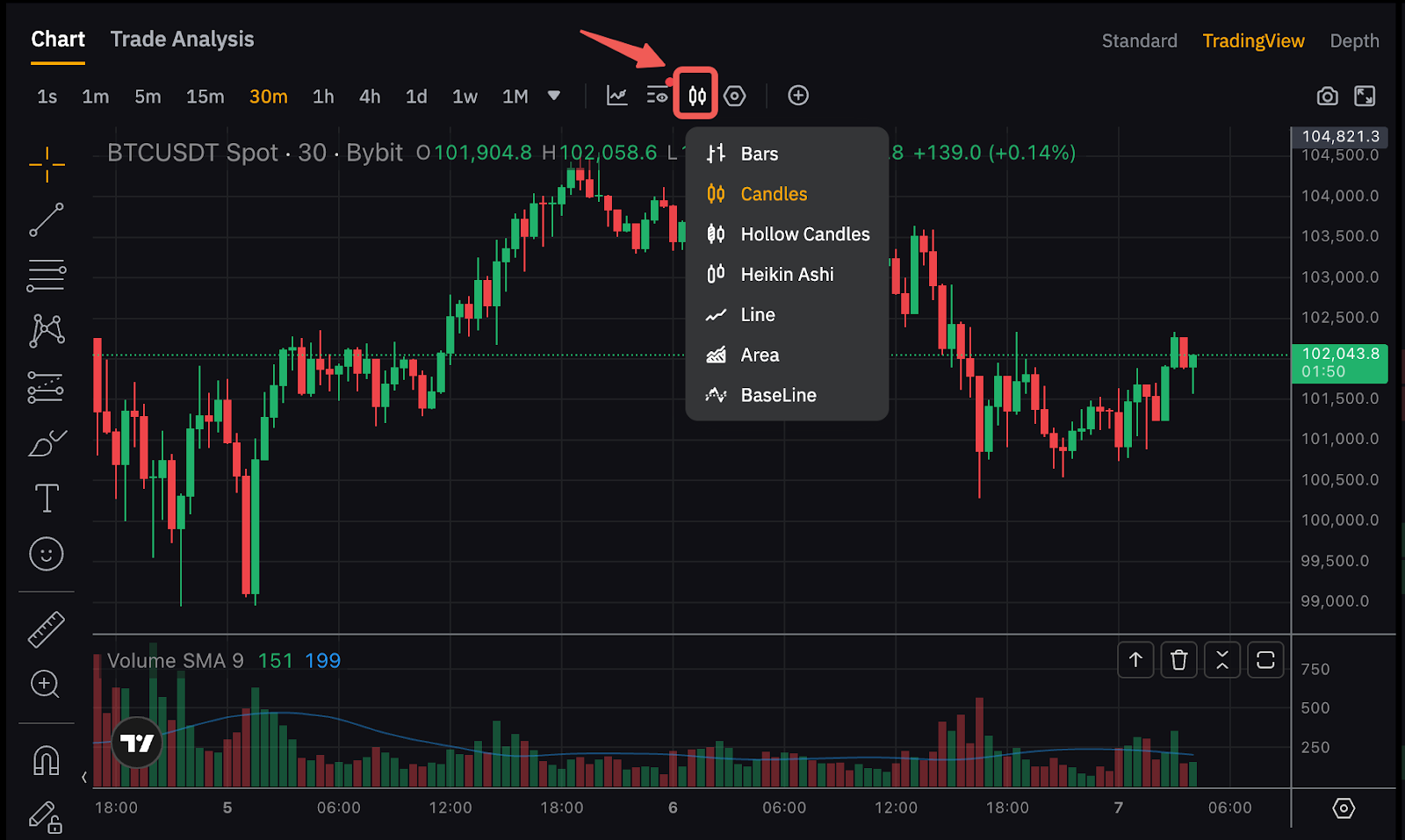
How can I switch between candlestick charts and line graph charts?
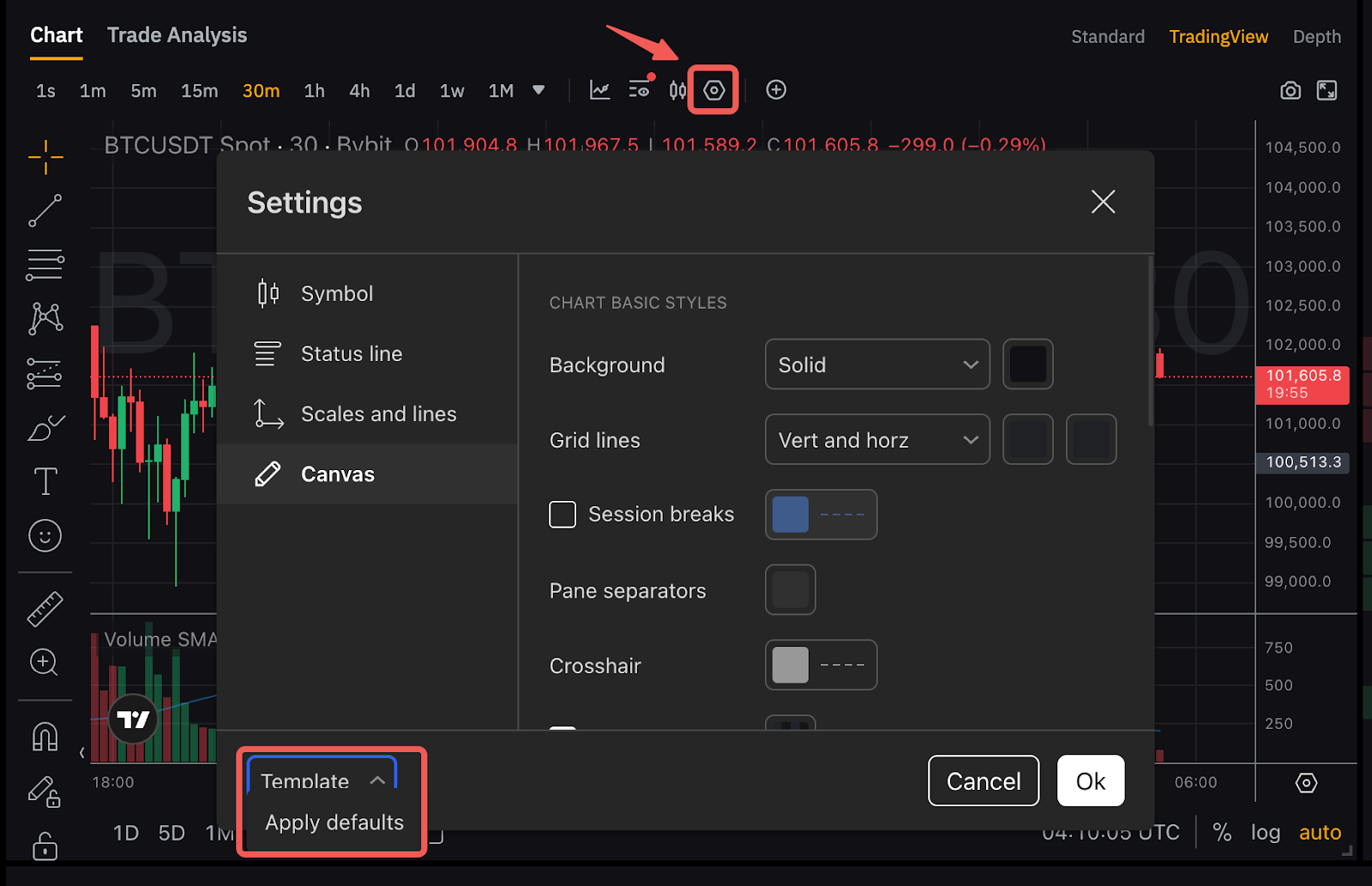
How do I reset the chart back to its default settings?
Right-click within the chart area, then click on Settings → Template → Apply Defaults. Alternatively, please clear your browser cookies and cache to reset the chart back to its default setting.
Will my chart drawings and indicators remain if I log in to my account using another PC device or browser?
Yes, they will remain if you use another PC device or browser. However, do note that the chart drawings and indicators will only be saved to the cloud every five (5) minutes, please allow some time to synchronize the data. Drawings on the PC chart will not be reflected on the Bybit Georgia App.
Is it possible to view or trade on Bybit Georgia Spot Market chart directly on TradingView?
No, currently it is not possible. However, the Bybit Georgia team is constantly exploring possibilities to innovate and improve the Bybit Georgia User Experience. Bybit Georgia will add Spot Trading Chart to TradingView in the near future.