Here's a detailed guide to help you transfer assets between your Funding Account and Unified Trading Account (UTA) on Bybit Georgia.
Transfer Assets
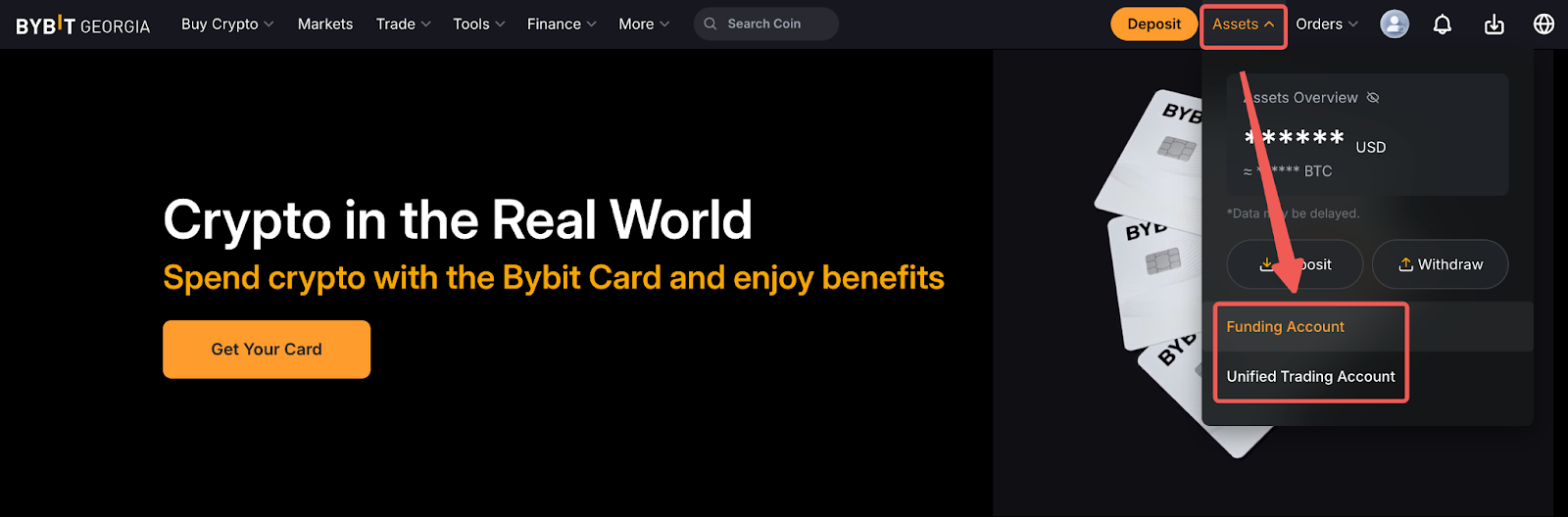
Step 1: Go to Assets in the top-right corner of the Bybit Georgia homepage and select the account where your funds are located.
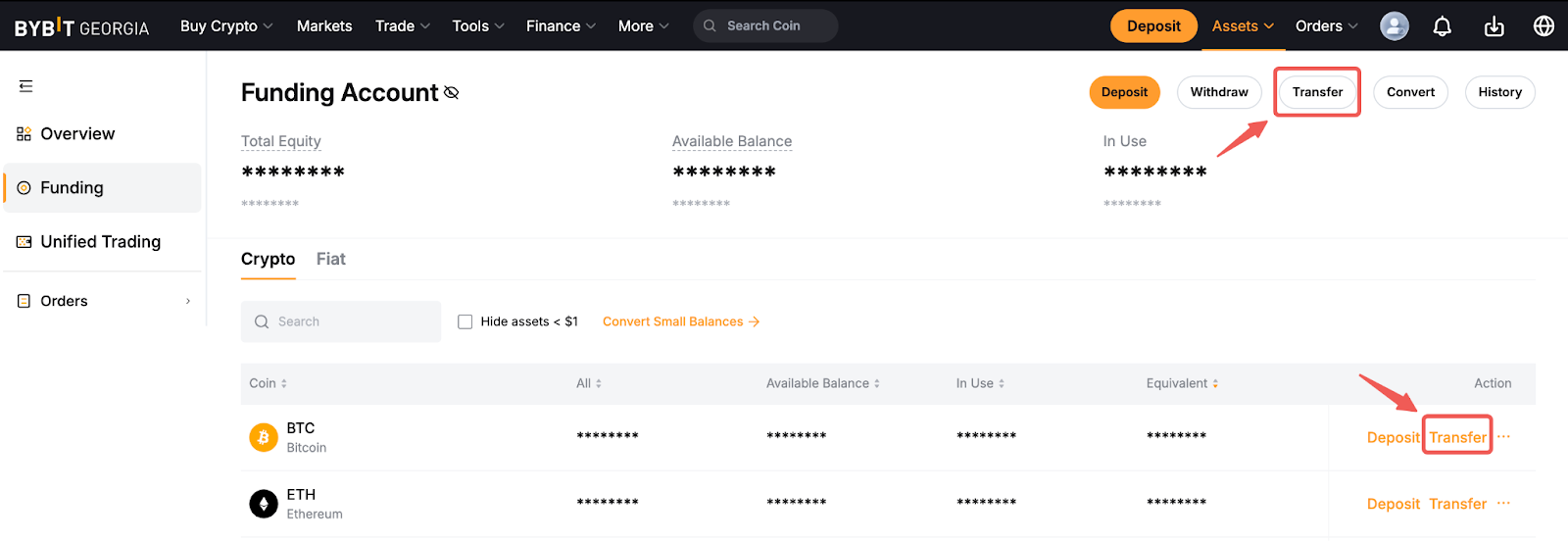
Step 2: On the selected account page, click Transfer next to the asset you wish to transfer.
Alternatively, select Transfer in the top-right corner of the page to transfer multiple assets at once.
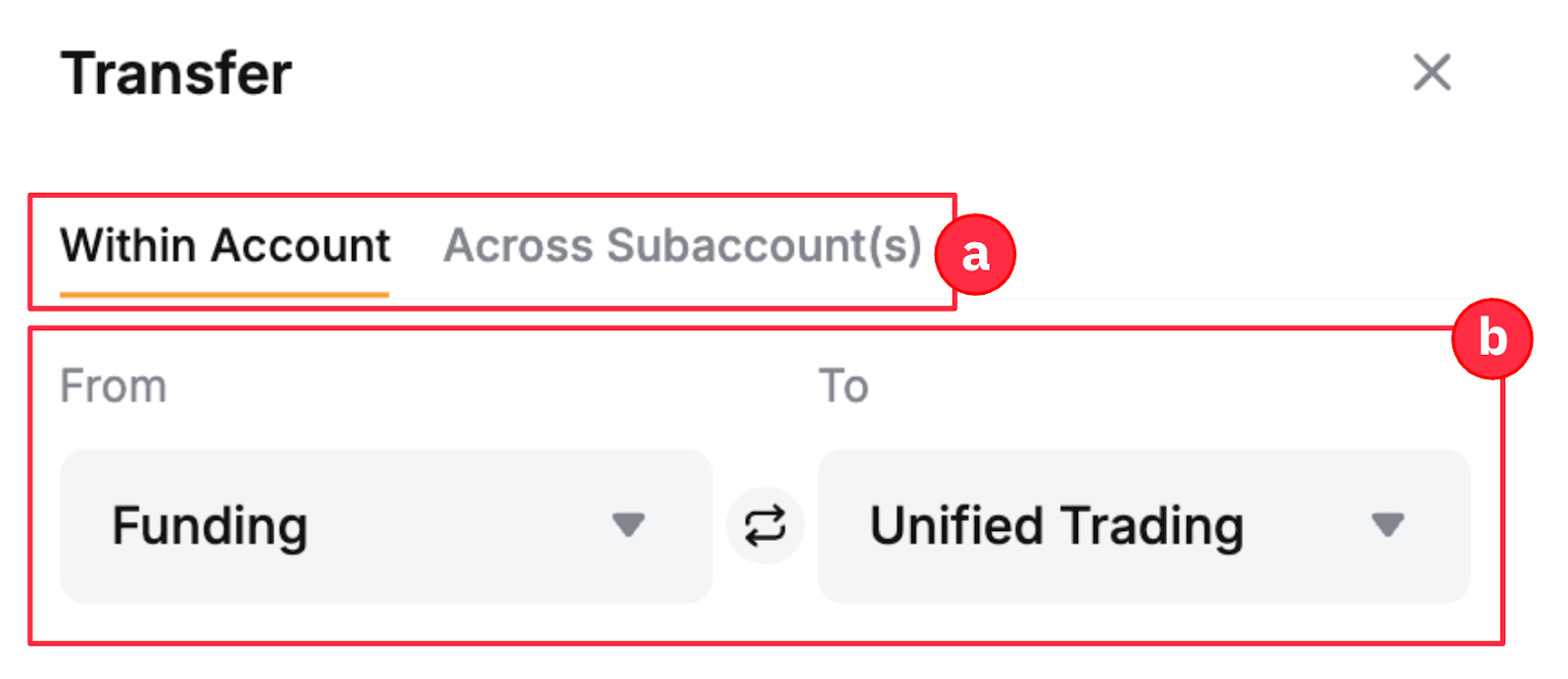
Step 3: A Transfer pop-up window will appear.
To transfer a single asset, select the sending and receiving accounts, coin, and transfer amount, then click Confirm.
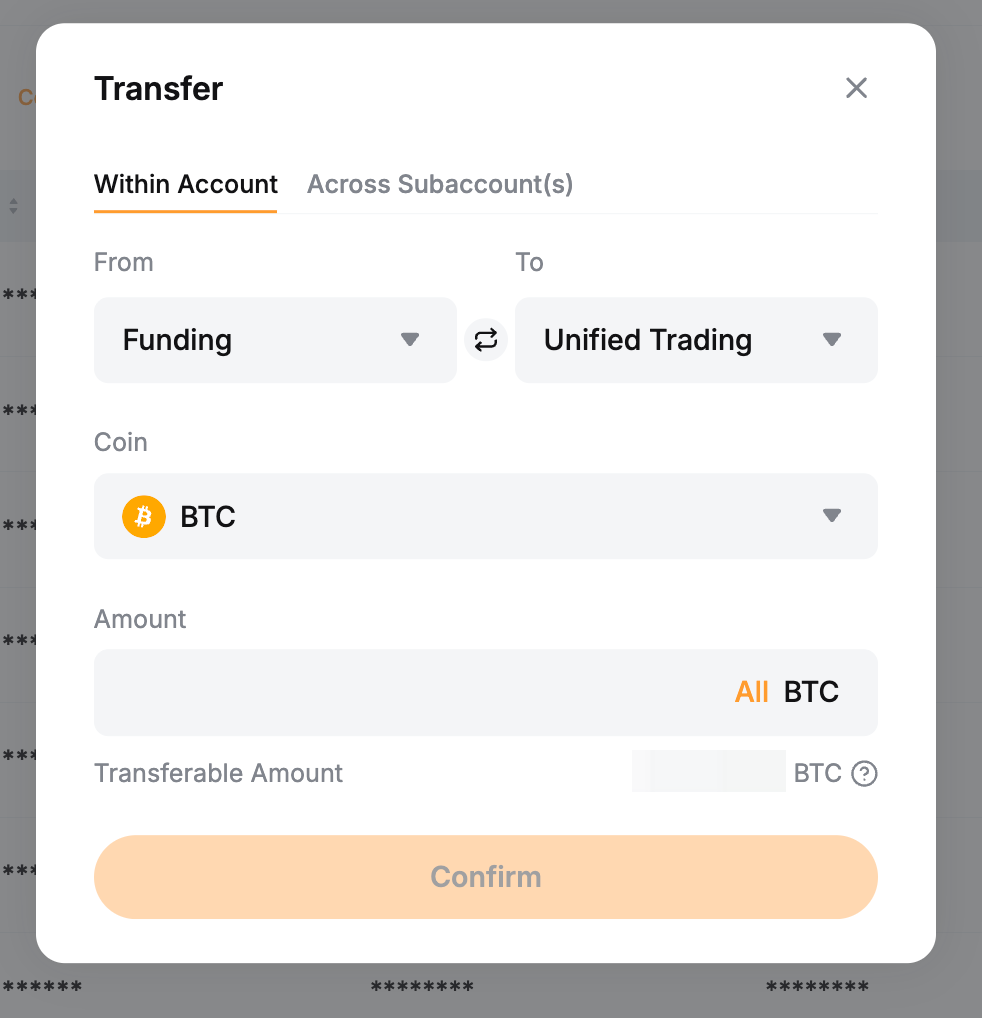
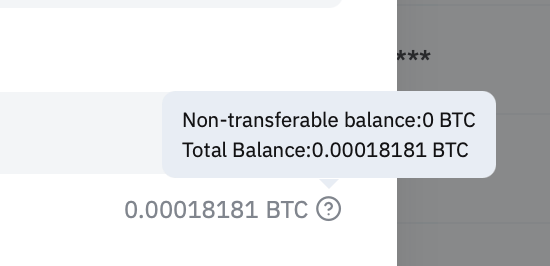
If the transferable amount shown is lower than expected, hover over the question mark icon to view your account's total balance and the amount currently frozen (non-transferable) due to the following reasons:
- Bonuses cannot be transferred.
- Your funds are being used for trading.
- Deposited funds are currently under risk control review.
Notes:
a. Asset transfers are supported within your Main Account and across Subaccounts. For more information on transferring assets to your Subaccounts, follow the steps here.
b. You can select each account from the menu or swap the sending and receiving accounts by clicking the two-arrow icon.
View Transfer History
From the Funding Account
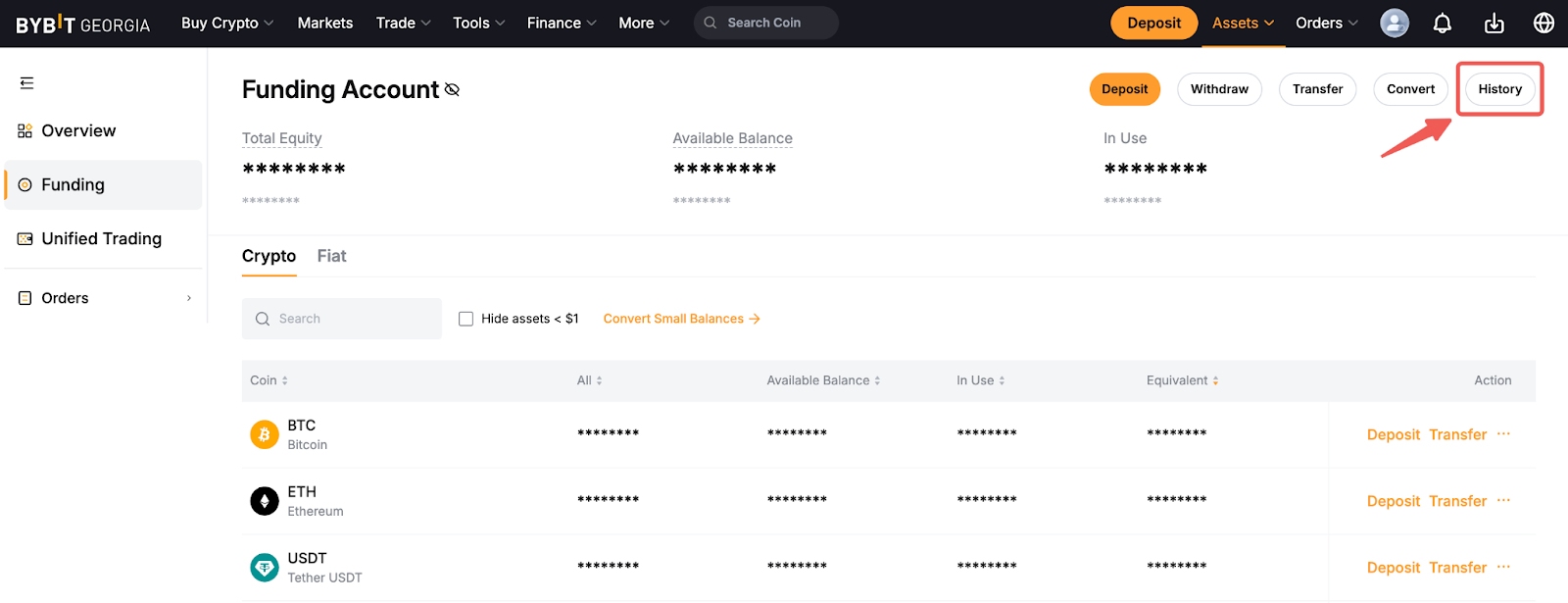
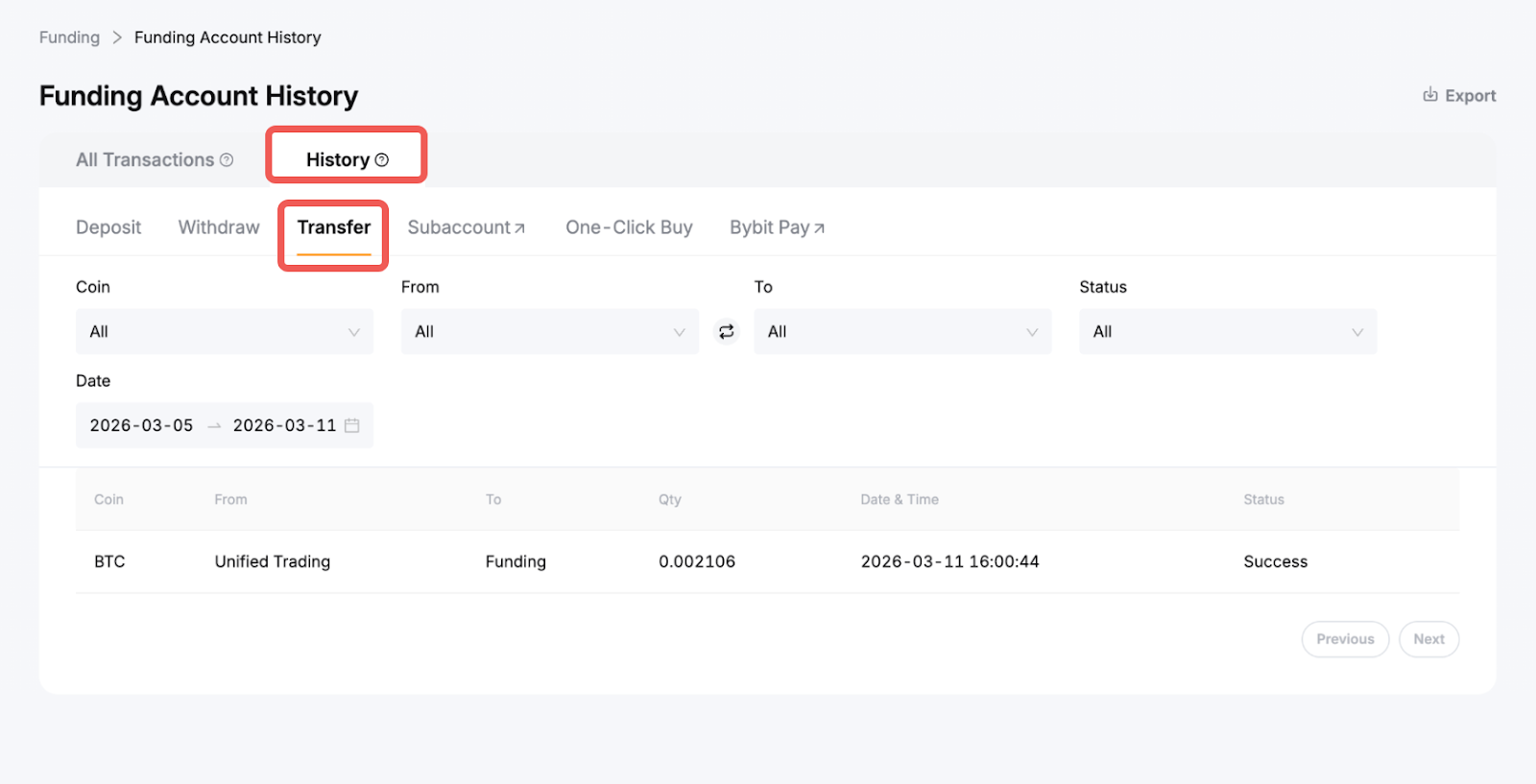
Go to the Funding Account History page by clicking the History icon. You can view your transfer records in the All Transactions tab by filtering the Type to Transfer in/Transfer out.
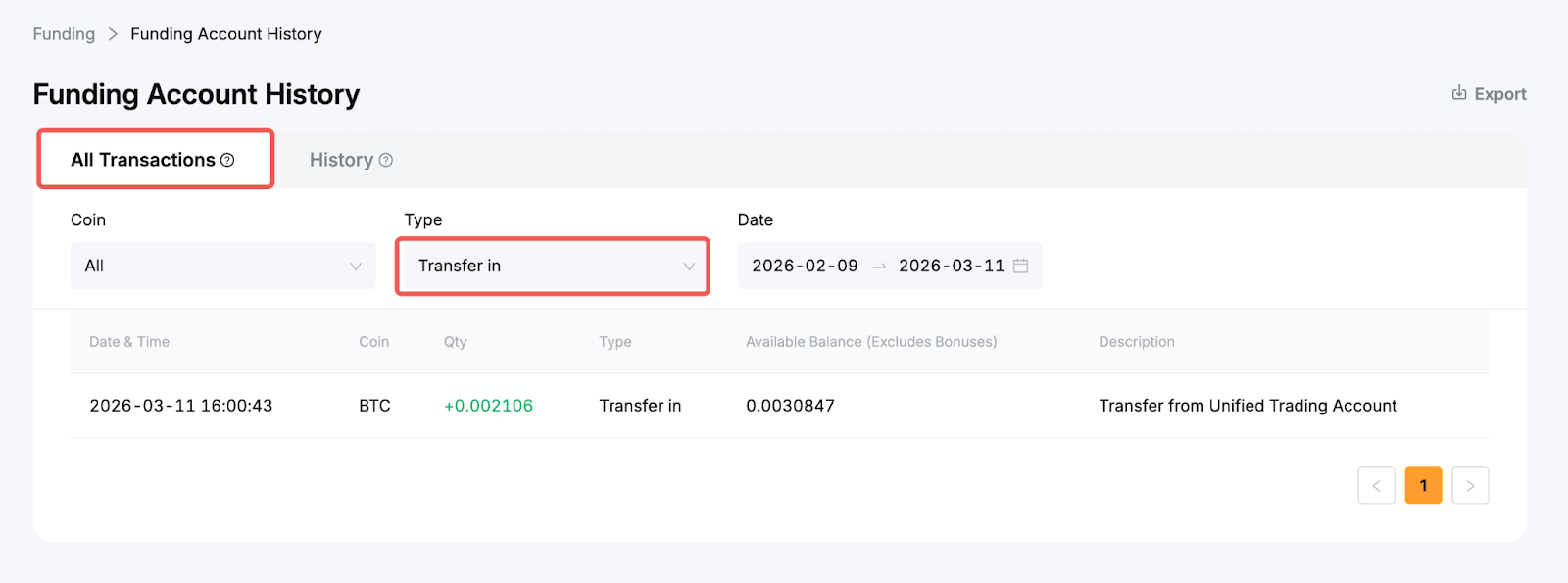
Alternatively, go to the History tab and select Transfer. For more specific results, you can adjust the available filters (e.g., Coin, From/To, Status and Date).
From the UTA
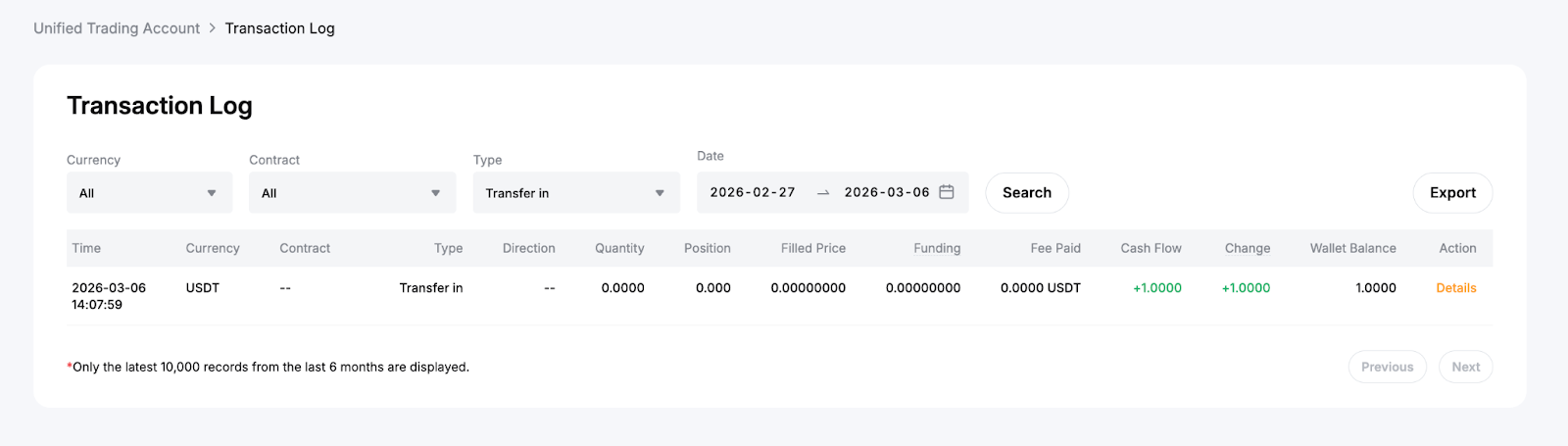
To get started, hover over the History Records dropdown menu and select Transaction Log.
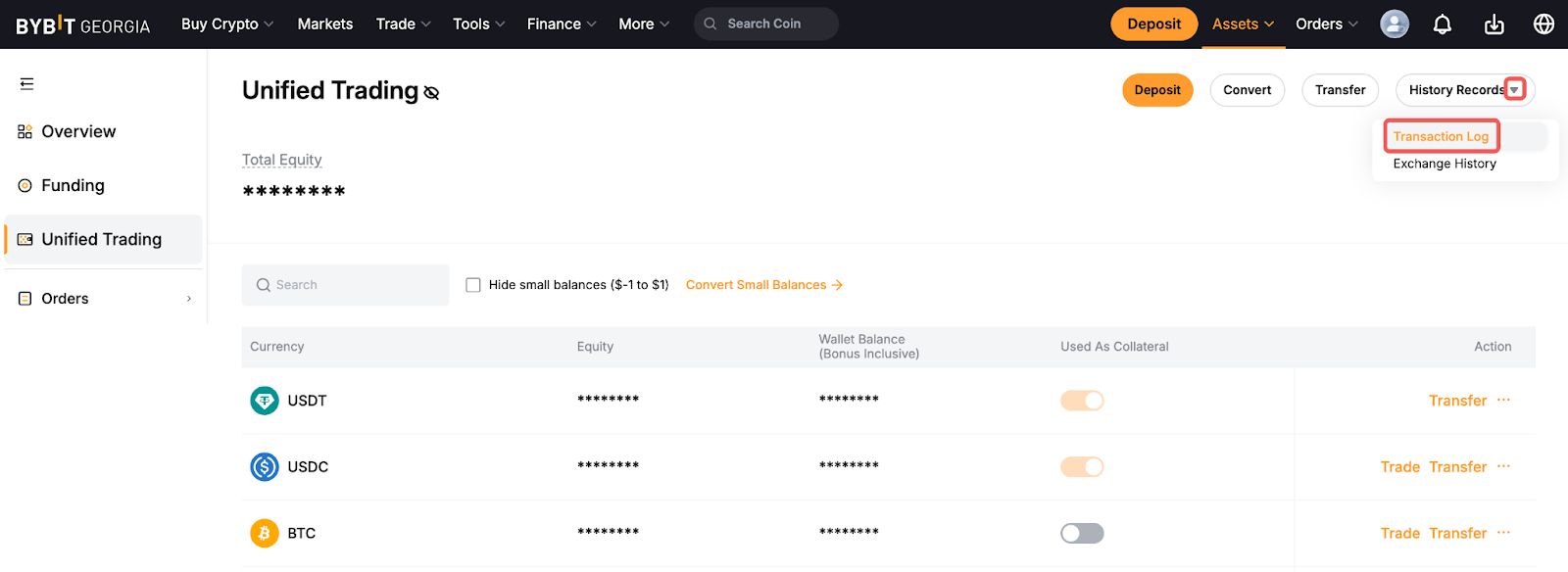
Once you're on the Transaction Log page, filter the Type column by Transfer in or Transfer out.