
Bybit Georgia has integrated new account security features into your account. Now, you can submit your account change requests from the login page. Please note that these self-service features are not available to suspended or restricted accounts.
Here is a guide on how to update your account details using the self-service functions.
Step 1: Log in to your account via Bybit Georgia’s website. To do this, enter your registered email address or mobile number and your login password.
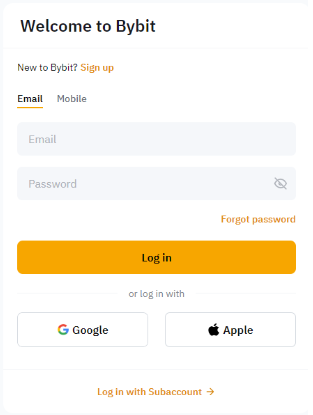
Note: If you have forgotten your password, please follow this guide to reset it. The self-service feature will still be available during the password reset process.
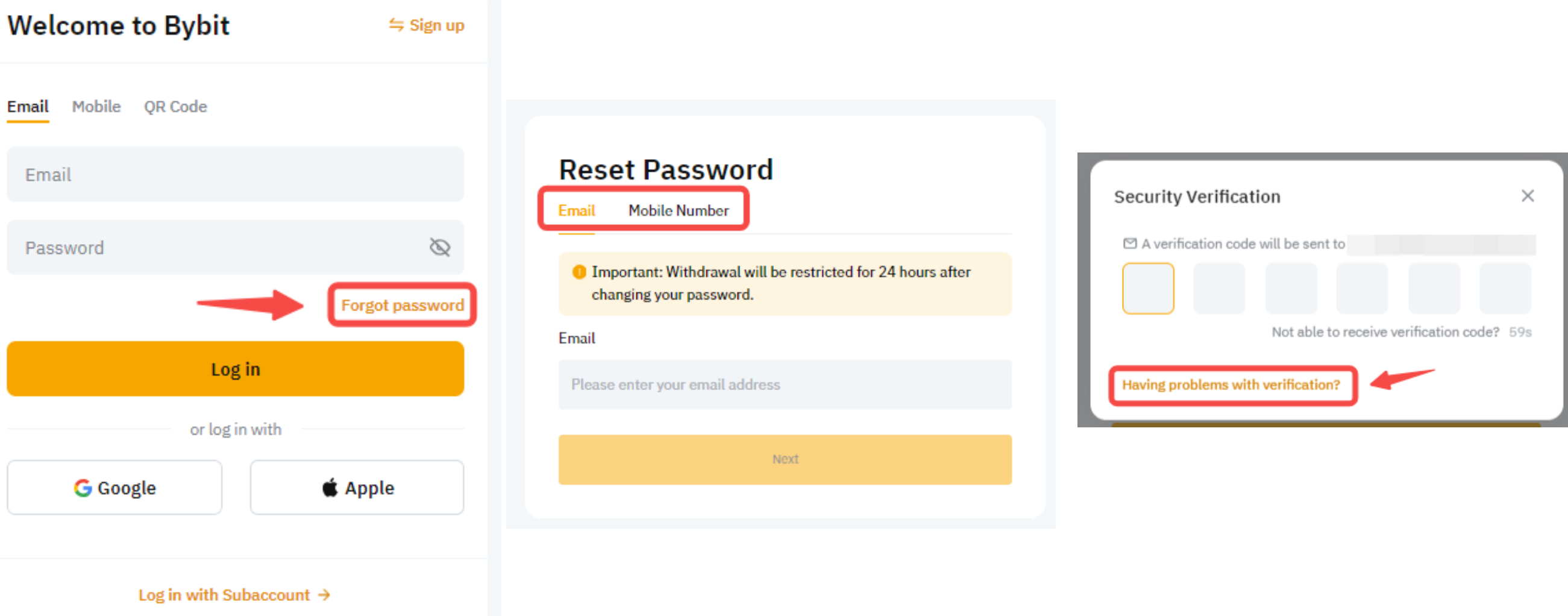
Step 2: After entering the correct information, a security verification pop-up will appear. If you have permanently lost access to your email address, phone number or Google Authenticator, please click on Having problems with verification.
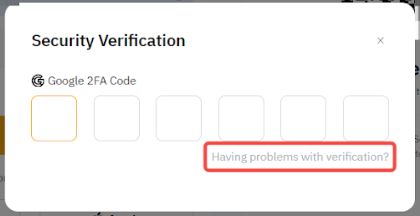
Step 3: Please select the security option you would like to reset.
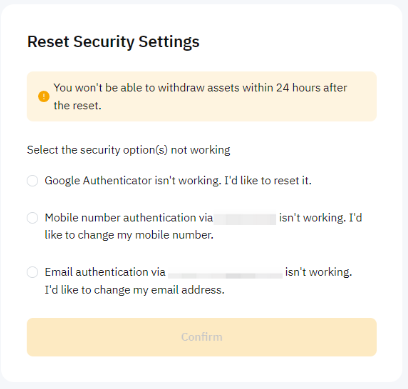
a) Unbind Google Authenticator: Select the option Google Authenticator isn't working. I'd like to reset it. Then, enter the correct email verification code and/or SMS verification code sent to you.
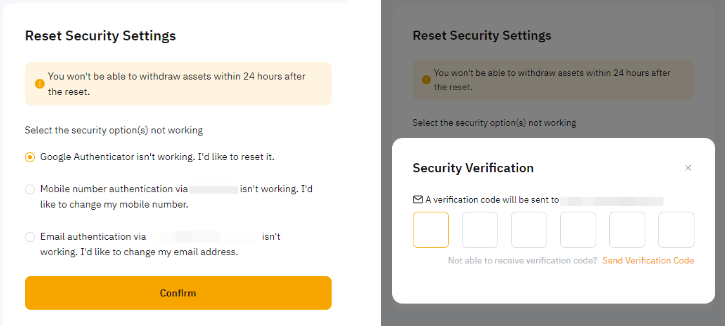
b) Change Mobile Number: Select the option Mobile number authentication via (your registered mobile number) isn't working. I'd like to change my mobile number. Enter a new mobile number for your request.
- Enter the new mobile number and click on Send Verification Code/Get Code. Verify the new mobile number with the correct SMS verification code sent to your new mobile number. Refer to Troubleshooting: Unable to Receive SMS Verification Code if you did not receive the SMS verification code.
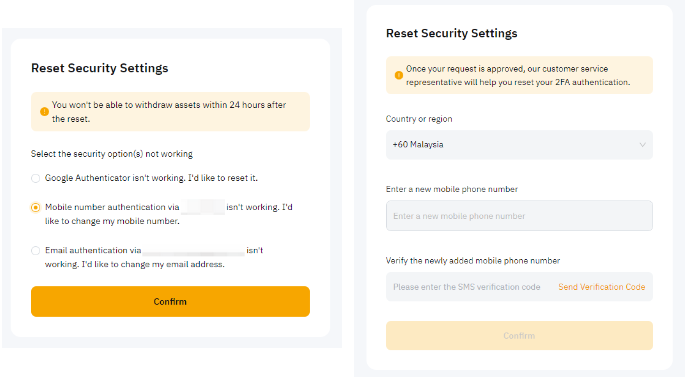
Note: The new mobile number must not be previously registered on the Bybit Georgia platform.
c) Change Email Address: Select the option Email authentication via (your registered email address) isn't working. I'd like to change my email address.
- Enter a new email address and click on Send Verification Code/Get Code. Verify the new email address with the correct email verification code sent to your new email address inbox. Refer to Troubleshooting: Unable to receive Email verification code if you did not receive the email verification code.
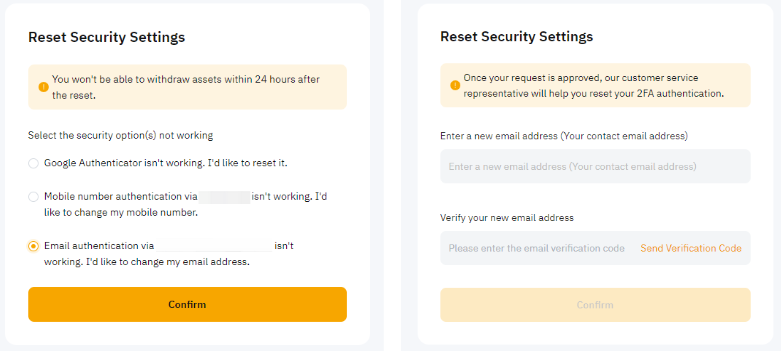
Note: The new email address must not be previously registered on the Bybit Georgia platform.
Step 4: For account safety and verification purposes, you are required to complete an additional security verification. This might involve entering another verification code (email verification code/SMS verification code/Google Authenticator code) or completing facial verification.
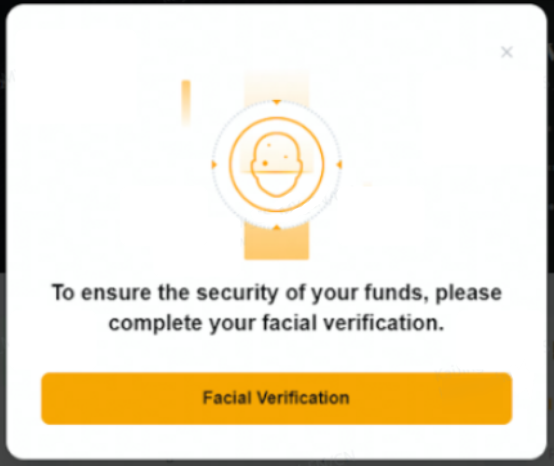
Step 5: You will receive a pop-up message stating either:
- The submission has been completed. The Customer Support team will review it within 1-3 working days, or the Account security settings have been successfully changed/unbound.
If you are still having difficulty changing your account security details, please follow the relevant instructions indicated in the guides below:
- How to Change/Unlink Your Registered Email Address
- How to Change/Bind Your Mobile Number
- How to Recover Your Google Authenticator Code
Alternatively, you can submit a request to our Customer Support team via this form.