
You can now purchase cryptocurrencies with more than 36 fiat currencies on Bybit using Google Pay and Apple Pay. Please note that this payment method will only be available in the supported countries listed here.
Please find below the list of currently supported fiat currencies for Google Pay and Apple Pay:
|
Payment Method |
Supported Fiat Currencies |
Supported Currencies |
|
Google Pay |
USDT and BTC |
DZD, USD, AUD, EUR, AZN, BGN, CAD, CZK, DKK, DOP, HKD, HUF, INR, IDR, ILS, KZT, KES, KWD, NZD, NOK, OMR, PEN, PHP, PLN, QAR, RON, SAR, ZAR, SEK, CHF, TWD, UAH, AED, GBP, VND |
|
Apple Pay |
EUR and GBP |
AUD, EUR, BGN, CAD, CZK, DKK, GEL,GBP, HKD, HUF, ISK, JPY, KZT, CHF, NZD, NOK, PLN, RON, SEK, TWD, UAH, AED, USD |
Note: Apple Pay is only compatible with iOS devices (iOS 16.2 or above), and the Safari browser supports Bybit version 4.40.0 or higher.
Here is the step-by-step guide on how to buy coins with Google Pay/Apple Pay:
Step 1: Click on Buy Crypto → One-Click Buy on the top left corner of the navigation bar to enter the One-Click Buy page.
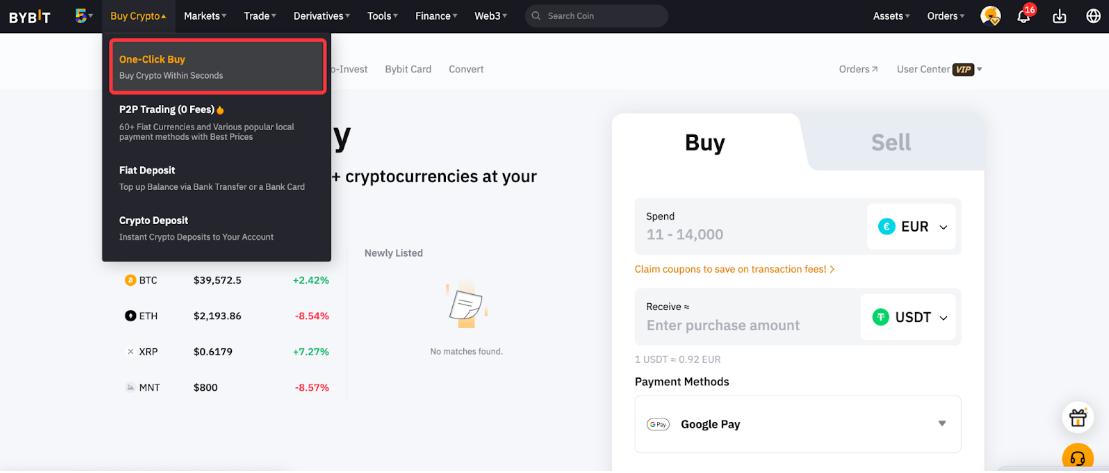
Step 2: Place an order by following these steps:
-
Select the fiat currency that you want to pay with.
-
Select the coin — USDT — you would like to receive.
-
Enter the purchase amount. You can enter the transaction amount based on fiat currency or coin, according to your needs.
-
Select Google Pay/Apple Pay as your Payment Method.
-
Click on Buy with Fiat
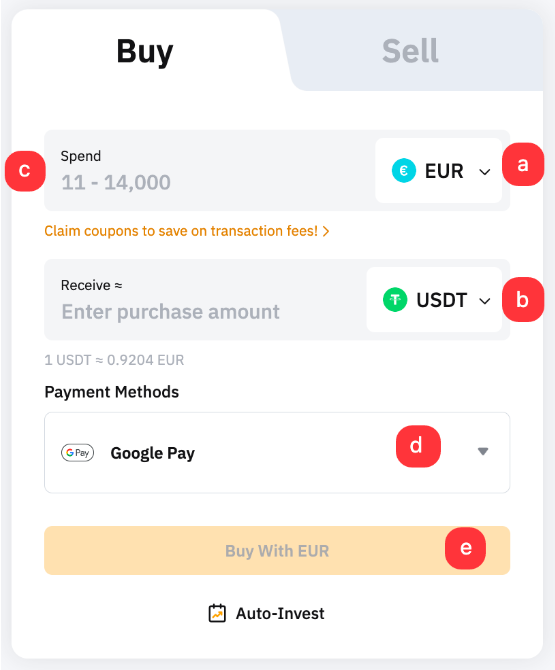
Note: Apple Pay is only supported on iOS devices (iOS 16.2 and above) and the Safari browser with Bybit version 4.40.0 or higher.
Step 3: Choose the deposit account and check the payment details carefully before confirming your order.
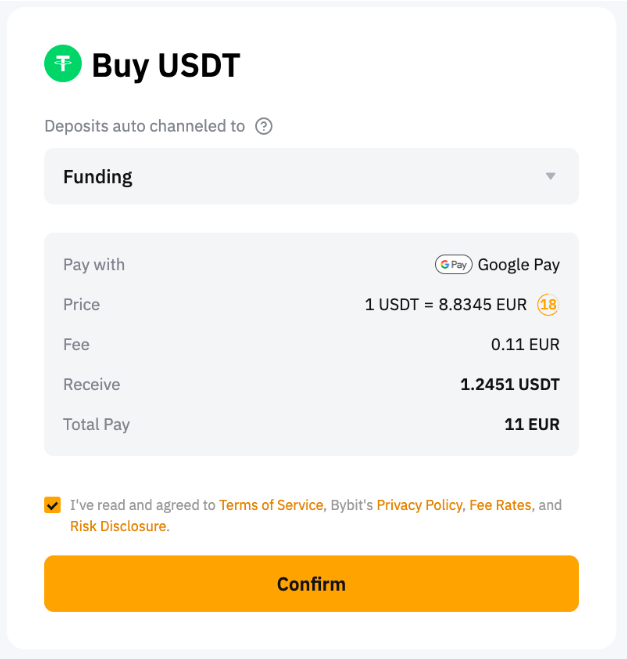
To link your Google Pay/Apple Pay account for the initial deposit, click on Continue on the pop up window.
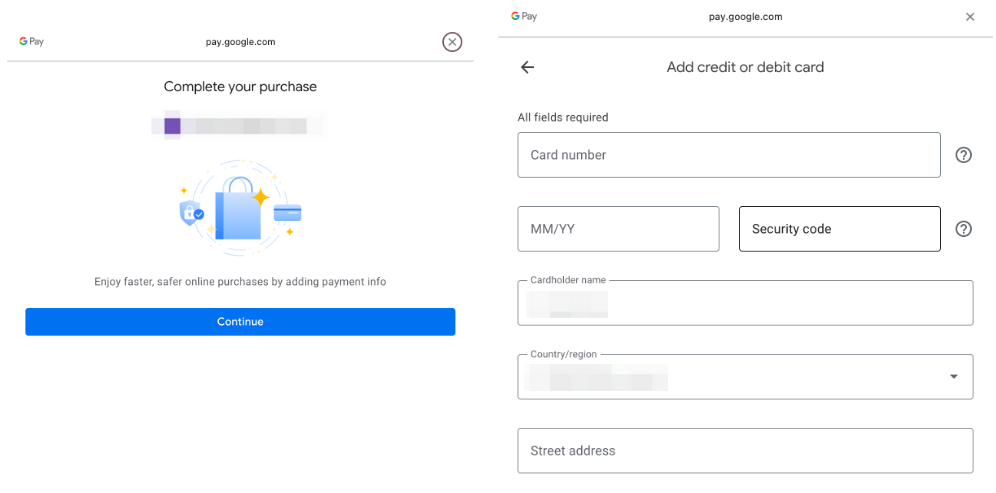
Note: Kindly ensure to select your Country/Region before entering your Card Details, as Google Pay/Apple Pay may require specific formats.
Step 4: Once you have successfully added/chosen your bank card, click on Confirm to proceed.
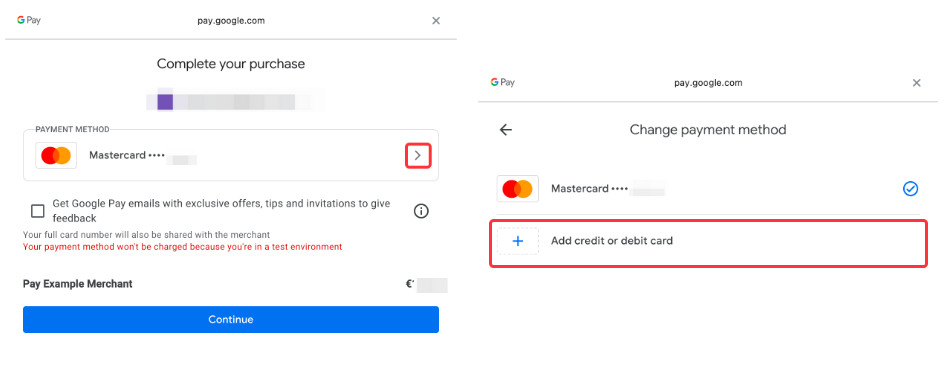
Step 5: For security purposes, kindly enter the security code for your selected card and then click on Verify.
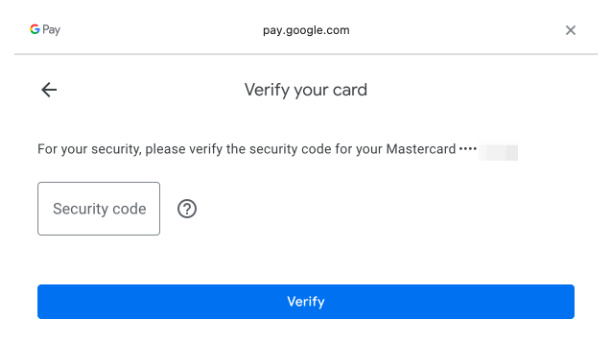
Step 6: You may prompted to add a billing address for your current deposit in Google Pay.

Note: The billing address information will be stored once the transaction is completed.
Step 7: Please enter the security code and click on Spend in Google Pay.
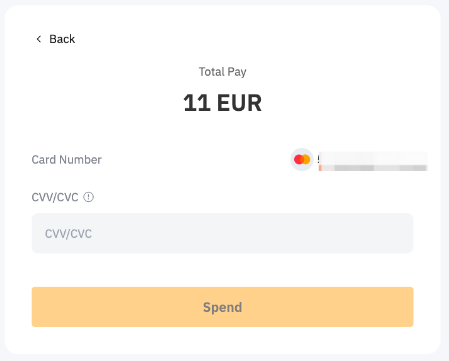
Step 8: You will receive a notification on your deposit status. If successful, the assets will be credited to your selected account within 48 hours. If not, the notification will indicate the failure reason and you will be advised to try again later.
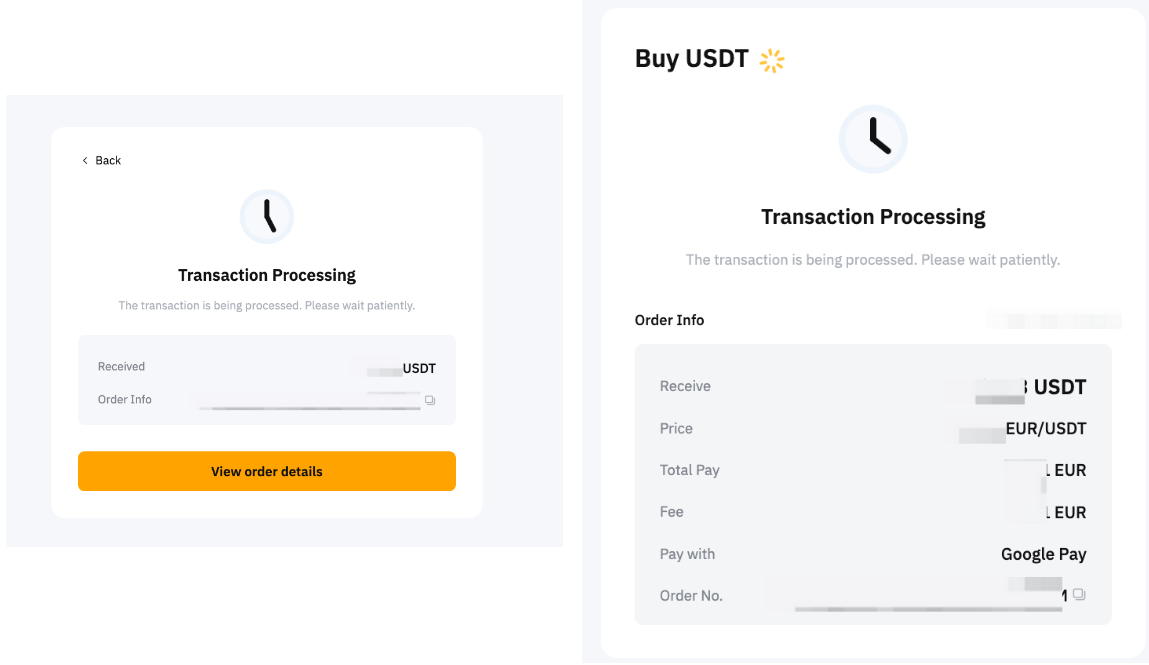
You can track your deposit on the One-Click Buy order page.